
The user manual
How Granth works
Granth (ग्रन्थ — the bound book) is Venus Remedies’ controlled-document system. Every SOP, format, annexure and logbook lives here as a living, sealed record: authored, reviewed, signed, issued and read digitally — never printed, stamped or signed by hand. This guide walks you through the whole library, step by step, with pictures. Keep it open on your first visit.
01 The threshold
Get started in two minutes
Open Granth and you meet the threshold— the closed granth, waiting to be unclasped. Write your name and word on the flyleaf inside, then press the wax seal. With sound on, you’ll hear the book open: entering Granth is opening the library.
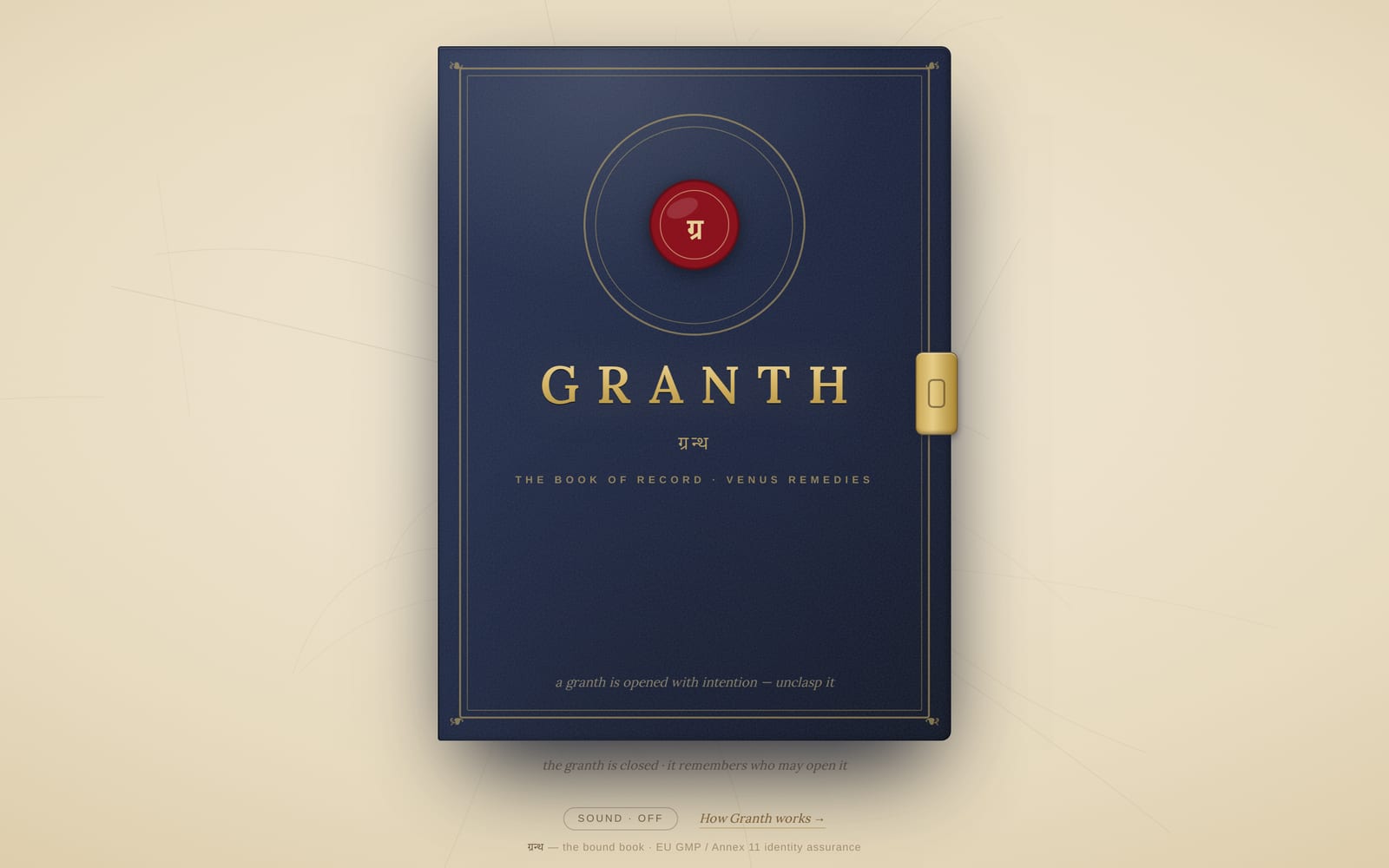
- Unclasp the cover, write your username or email and password on the flyleaf, then press the wax seal.
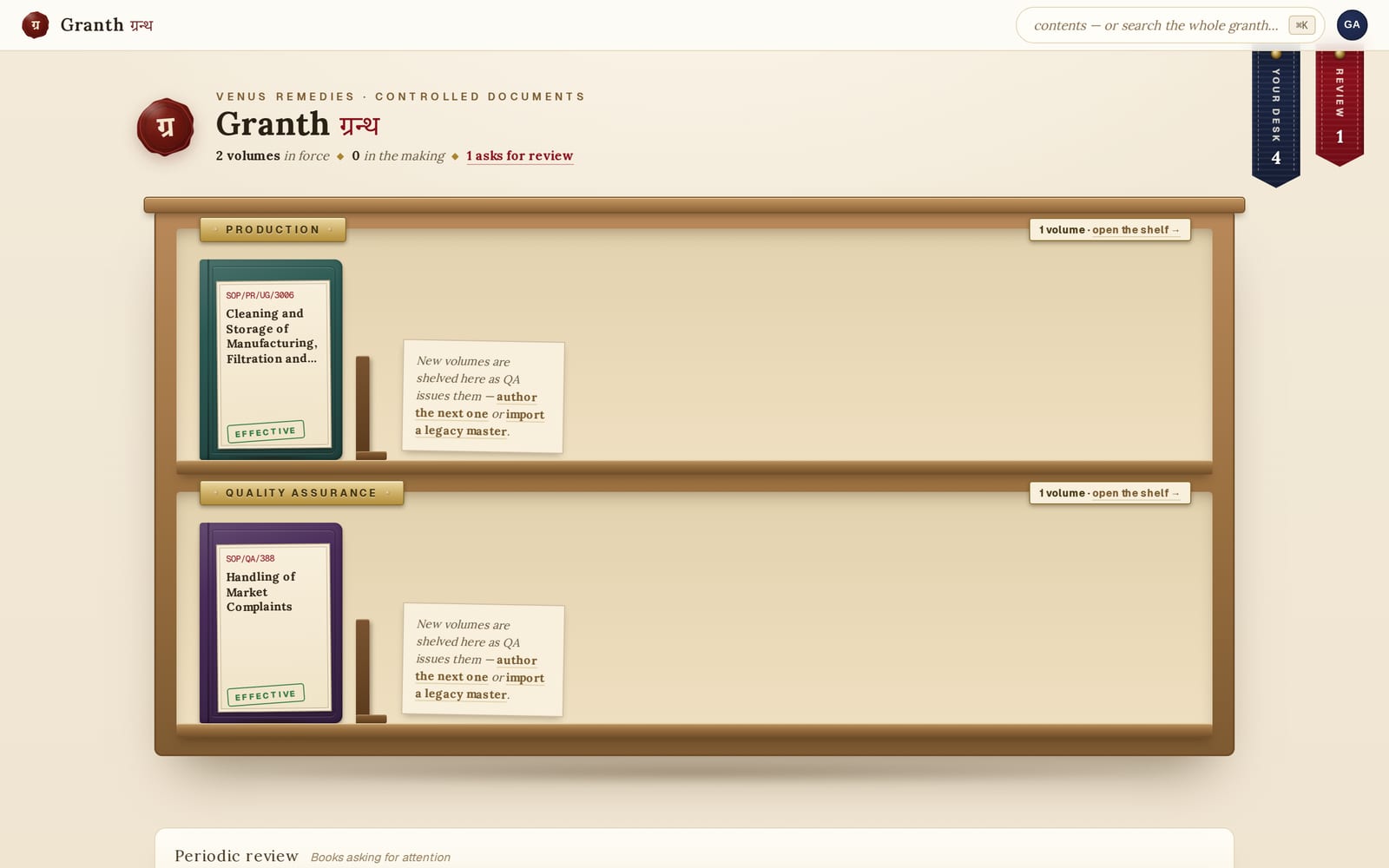
- You land in the Study— the library’s opening room. Department shelves hold the books; featured volumes face out; the rest stand as spines. Cloth bookmarks hang top-right whenever something needs you — your desk, reviews due, copies awaiting retrieval. Click one to go there (they also swing if you play with them).
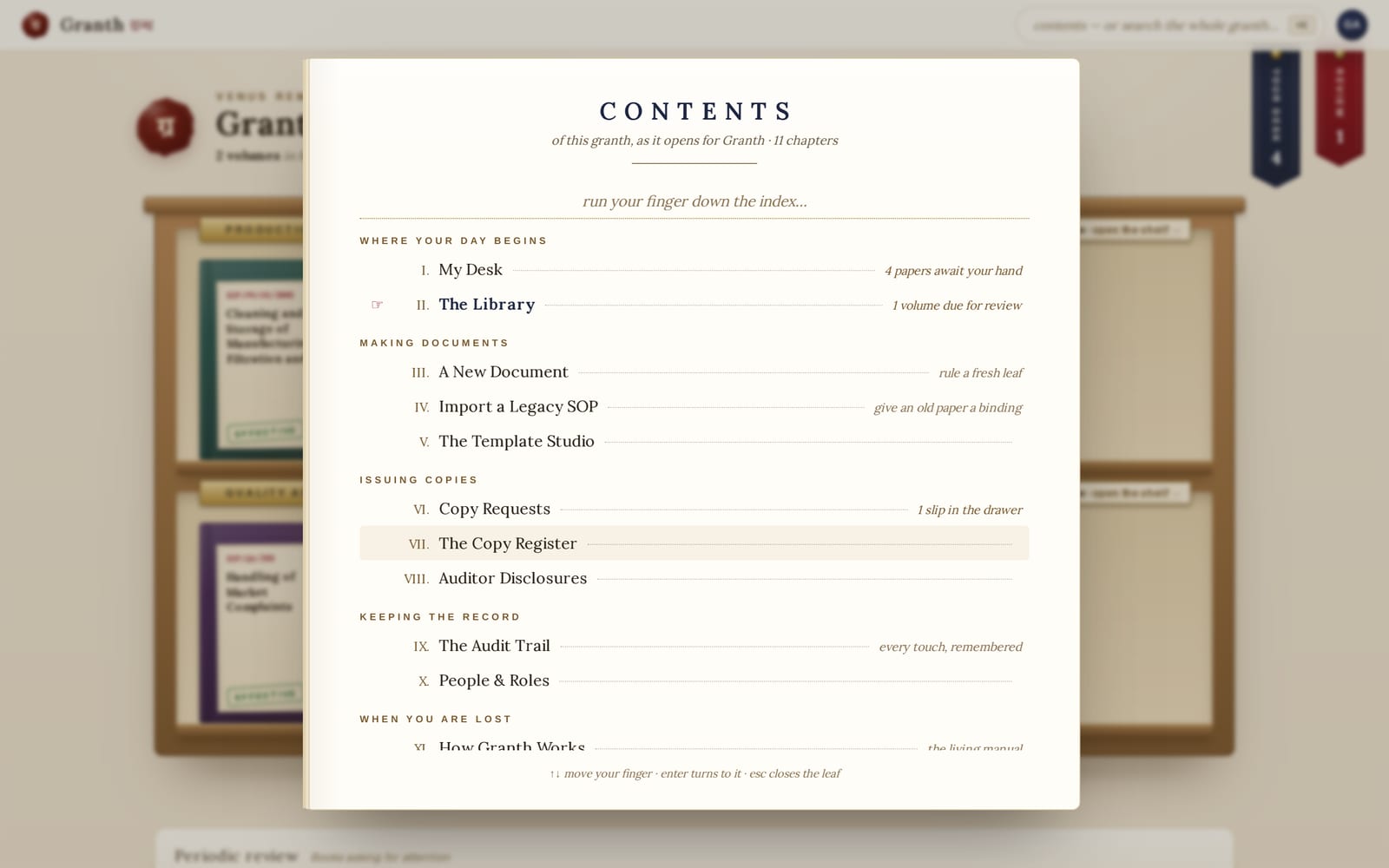
- The bar at the top carries exactly three things: the seal (home), one search pill, and your avatar. Press ⌘K (Mac) or Ctrl K (Windows) anywhere — the command palette is how you go everywhere: every place you may enter is listed, and typing searches inside the text of every document.
02 A cumulative capability ladder
Roles & what each can do
Granth reshapes itself around your role. A Reader sees a calm reading library; an Author gets a word processor and the drafting table; a Reviewer can also do Author work and owns review acts; an Approver carries all three tiers and can release documents. Reader remains read-only, while Admin is the system-wide superset. Here is exactly what each role can do — a tick means yes, a dash means no.
| Task | Reader | Author | Reviewer | Approver | Admin |
|---|---|---|---|---|---|
| Read effective documents | ✓ | ✓ | ✓ | ✓ | ✓ |
| Search inside documents | ✓ | ✓ | ✓ | ✓ | ✓ |
| Download / print the issued masterQA only — user departments receive unique hard copies from QA | – | – | ✓ | ✓ | ✓ |
| Download / print an issued controlled copyQA prints unique copies; departments do not pull digital issued PDFs | – | – | ✓ | ✓ | ✓ |
| Print a draft / non-issued previewframed draft stamp | – | ✓ | ✓ | ✓ | ✓ |
| Read & understood (acknowledge)when a task is assigned to you | ✓ | ✓ | ✓ | ✓ | ✓ |
| See draft / non-effective versionsEvery person in department D sees D’s Draft / In Review / Approved on the Study (list + read). Quality Assurance people also list/open other departments’ Draft / In Review / Approved. Inventory Reviewer does not get the QA Effective shelf. Admin: every department. Edit still requires Author. Named My Desk assignment still opens a foreign draft for a non-QA reviewer. | ◐ | ◐ | ◐ | ◐ | ✓ |
| Create a new SOP | – | ✓ | ✓ | ✓ | ✓ |
| Edit a draft | – | ✓ | ✓ | ✓ | ✓ |
| Comment on a drafton the authoring surface | – | ✓ | ✓ | ✓ | ✓ |
| Design enclosures | – | ✓ | ✓ | ✓ | ✓ |
| Submit for review | – | ✓ | ✓ | ✓ | ✓ |
| Sign (the ceremony)the act your role owns | – | ✓ | ✓ | ✓ | ✓ |
| Approve / make effective | – | – | – | ✓ | ✓ |
| Start a revision | – | ✓ | ✓ | ✓ | ✓ |
| Share as an internal link | – | – | – | ✓ | ✓ |
| Open the audit view | – | – | ✓ | ✓ | ✓ |
| Design controlled templatesthe template studio | – | ✓ | ✓ | ✓ | ✓ |
| Raise a copy requestone document per slip | ✓ | ✓ | ✓ | ✓ | ✓ |
| Review / issue copy requestsQA runs the counter | – | – | ✓ | ✓ | ✓ |
| Look up the document registry | ✓ | ✓ | ✓ | ✓ | ✓ |
| Copy register & reconciliationissuing & lifecycle: Approver/Admin | – | – | ✓ | ✓ | ✓ |
| Administer people & roles | – | – | – | – | ✓ |
✓can do it · ◐only in a specific case (see the note) · – not available to this role. The Admin holds every role at once.
03 One path, always visible
The life of a document
Every document — SOP, format, annexure, logbook, and every controlled template — moves through the same states, and each state names its own next action on the document itself, so you always know what to do next. A revision starts the loop again, superseding the version before it.
Nothing skips a step: a Draft cannot become Effective without being reviewed, signed and approved, and the whole chain is sealed into the tamper-evident audit trail.
04 The volume
Reading a document
Click any spine or cover on the Study’s shelves to open its volume. You see the controlled master exactly as issued — framed, stamped, signed — rendered on screen, with a readable transcription below it and every version in the left rail.
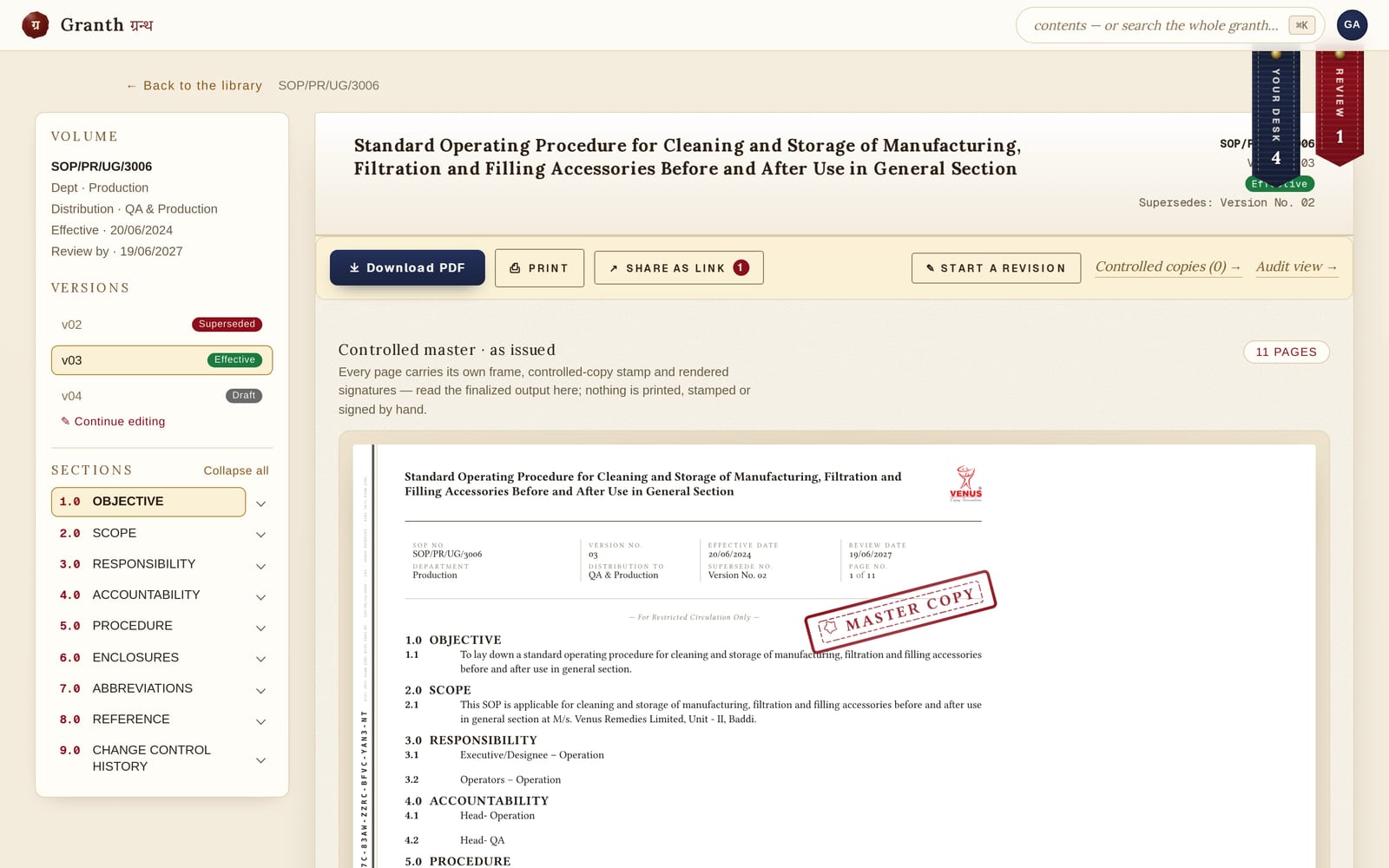
- The version rail shows what is Effective, Draft and Superseded. If you may edit a draft, a one-click Continue editing sits right there.
- The section navigator beneath it jumps to any section in one click and collapses sections in place — a fifteen-page SOP stops being an endless scroll.
- The controlled master is the finalized output — the same bytes you would print, every page carrying its frame, stamp and point-of-use QR. Below it, the readable transcription is searchable, and cross-reference links jump to the exact clause.
05 The writing desk
Creating & writing documents
Create a new document(in the ⌘K palette, or from the shelf’s easel card) starts from a template: the standard nine-section SOP skeleton is the default; a bound logbook starts from the blank recording grid or any approved design from the template studio.
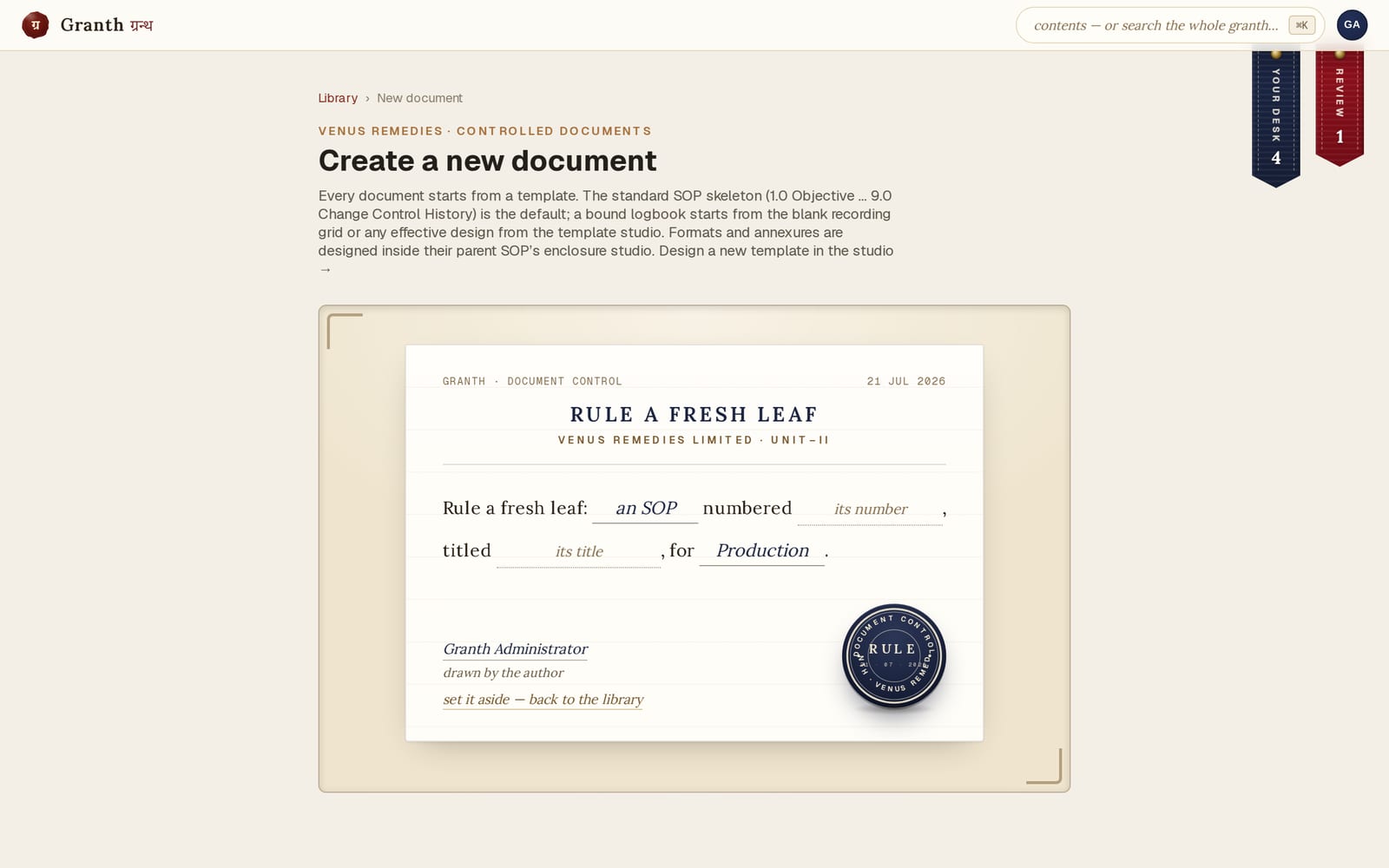
- Pick what to start from, fill the document number (stored exactly as typed — the parser never blocks) and title, then create. An SOP opens in the editor; a logbook lands in its parent’s enclosure studio.
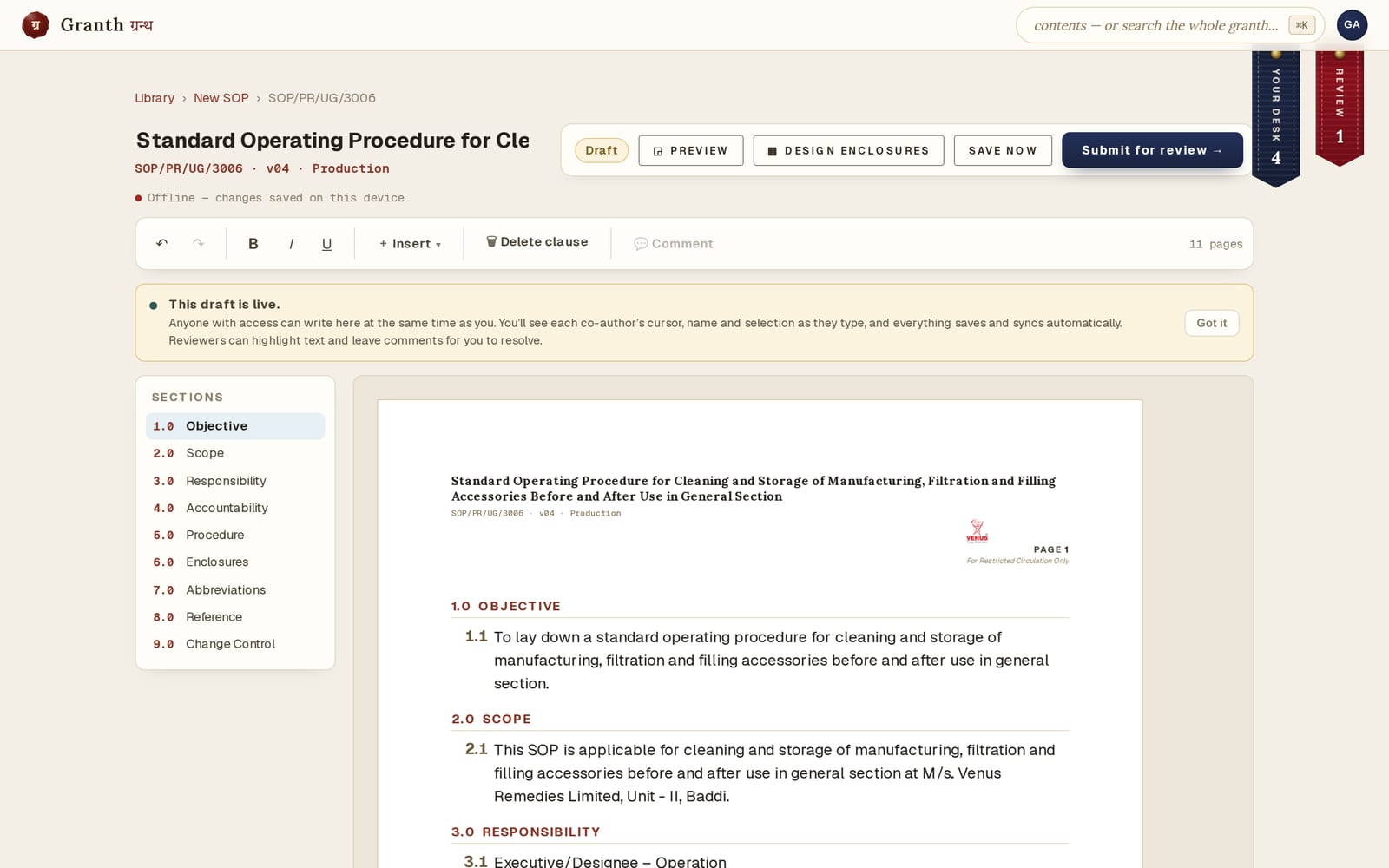
- In the editor, write section by section using the outline; Insert ▾adds clauses, tables, images and cross-references. The ink dot by the title breathes while it saves — you never press “save” and hope.
- Preview renders the framed page in any state (a draft is watermarked DRAFT · UNCONTROLLED); Design enclosures opens the A4 canvas for formats, annexures and logbooks bound to this SOP.
- When it’s ready, Submit for review— you’ll be asked for a reason (every lifecycle act records why).
06 The drafting table
The template studio
The template studio(⌘K → “Template studio”) is where controlled designs are drawn once and issued many times — logbook pages, format grids, annexure sheets. Each template is itself a controlled document: numbered, versioned, approved, revisable.
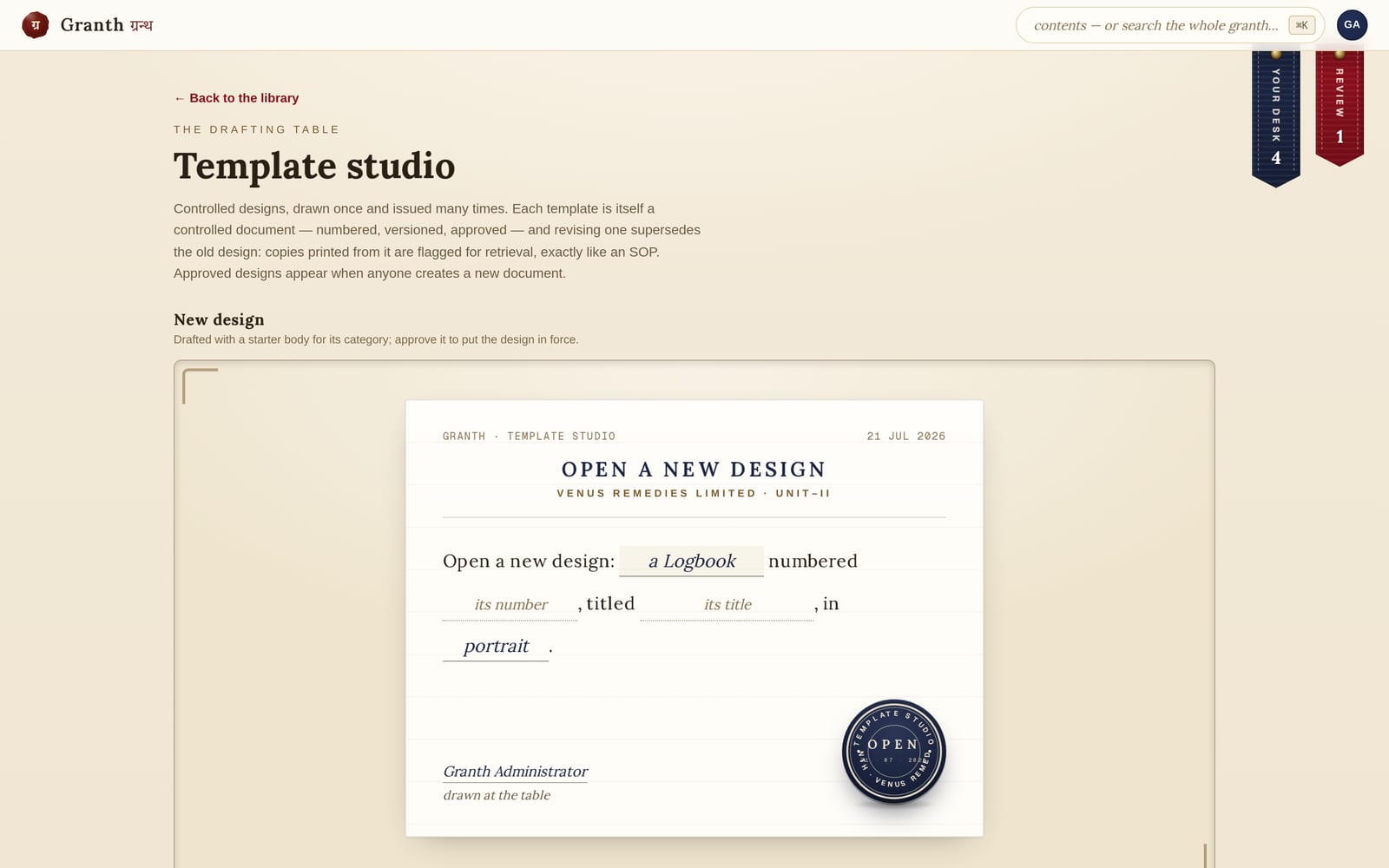
- Draft a design: give it a number (e.g.
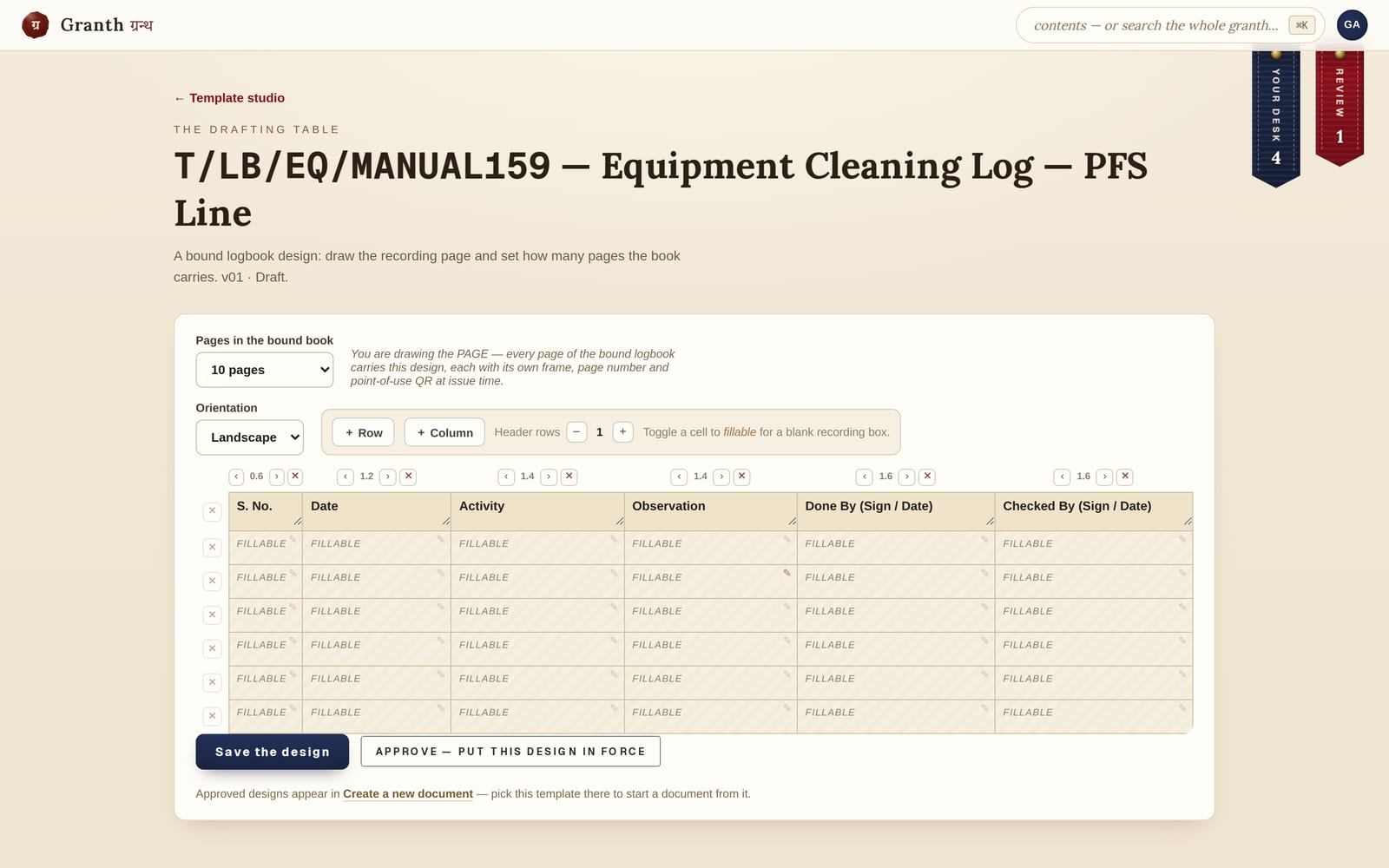
T/LB/EQ/01), a title, a category and orientation. It is created as a Draft with a starter body. - Open it on the canvas and draw: add rows and columns, set header rows, type the headings, toggle cells to fillable for blank recording boxes, weight the column widths. A logbook design is the page — every page of the bound book carries it — plus the page count.
- Approve — put this design in force. From that moment it appears in Create a new document for anyone to start from.
- To change an approved design, Revise it: a new Draft version opens; approving it supersedes the old design and — exactly like an SOP — any printed copies of the old design still on the floor are flagged for retrieval.
07 The review layer
Reviewing & commenting
While a document is being authored, comments can be left on any passage — highlight the text, add a note, and it appears in the comment panel for the author to resolve. Comments are a review layer; they never appear on the issued document.
- Select text in the editor and press Comment in the toolbar. Write your note and save it — the passage is highlighted.
- Every comment shows in the comment panelabove the page with its quote and note. They persist — reopen the draft and they’re still there.
- When a note has been dealt with, Resolve it. Resolving settles the highlight; the comment stays in the record (nothing is erased).
08 A deliberate act
Signing — the ceremony
Signing in Granth is a ceremony, not a checkbox. You draw (or type) your signature, state what it means, re-enter your password, and press the wax seal.
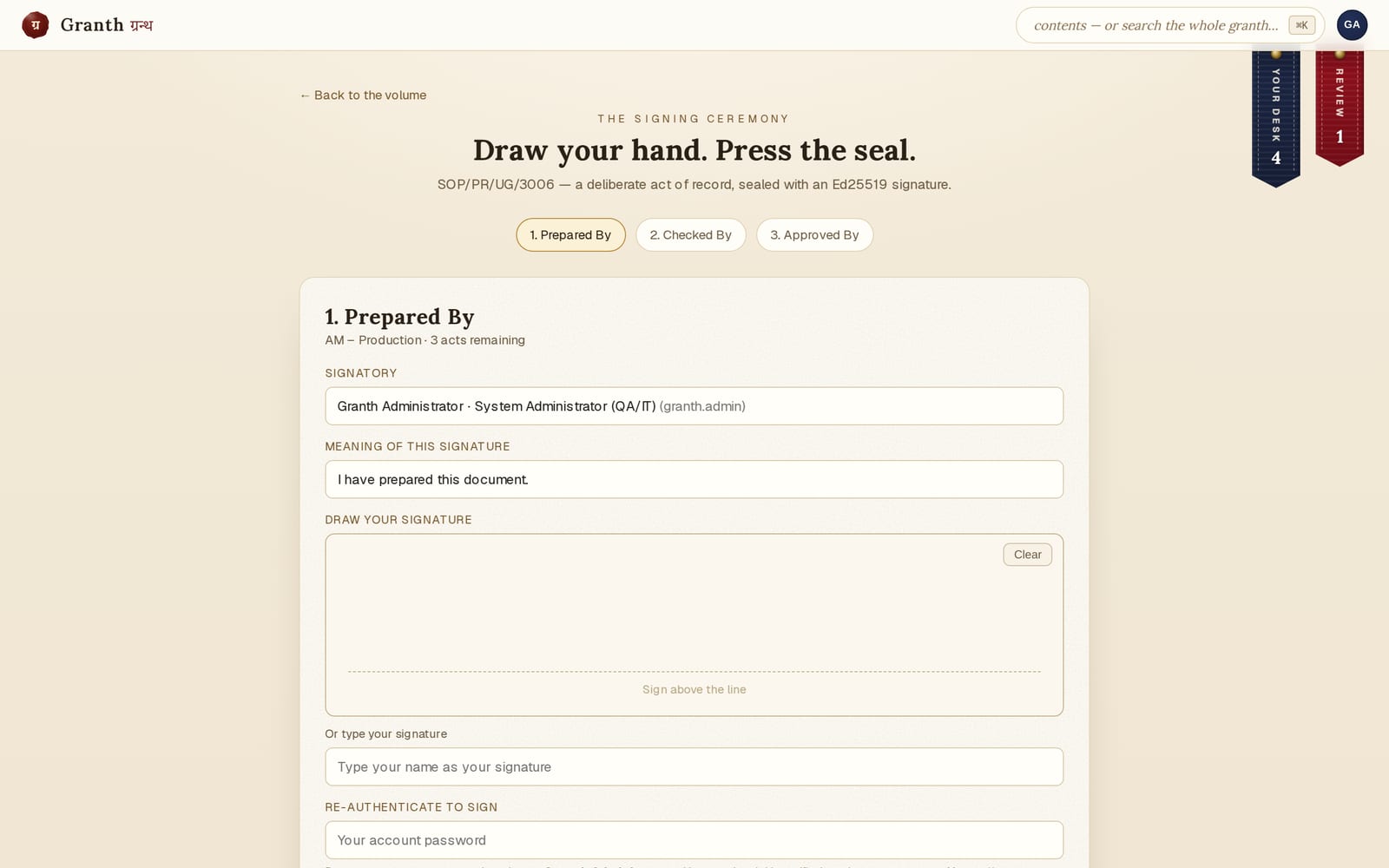
- Open a version that’s waiting for your signature (from your desk, or the volume). Your identity is shown — you sign as yourself.
- Draw your signature on the pad, or type it in the field below (both work — the typed path is fully keyboard-accessible).
- Re-enter your account password— this is the Annex 11 re-authentication that proves it’s really you.
- Press the seal.The act, its meaning, and the moment are sealed into the record. There’s no undo — a signature is a commitment.
09 Into effect
Approving & issuing
Once the signature chain is complete, an Approver makes the version Effective. At that moment Granth issues the controlled master — the locked record that supersedes the previous version and becomes the one true copy, every page carrying its own scannable QR.
- Approve the version and set its effective date.
- Granth issues the controlled master and auto-supersedes the prior effective version — the shelf now shows the new one, and any controlled copies of the old version out on the floor are flagged for retrieval in the copy register.
- The issued master is immutable. To change anything, you start a revision, which opens a fresh Draft and the loop begins again.
10 The record of reading
Read & understood
When a version is issued to your department, a read & understood task appears on My desk. This is how Granth records that the people who must follow an SOP have actually read it.
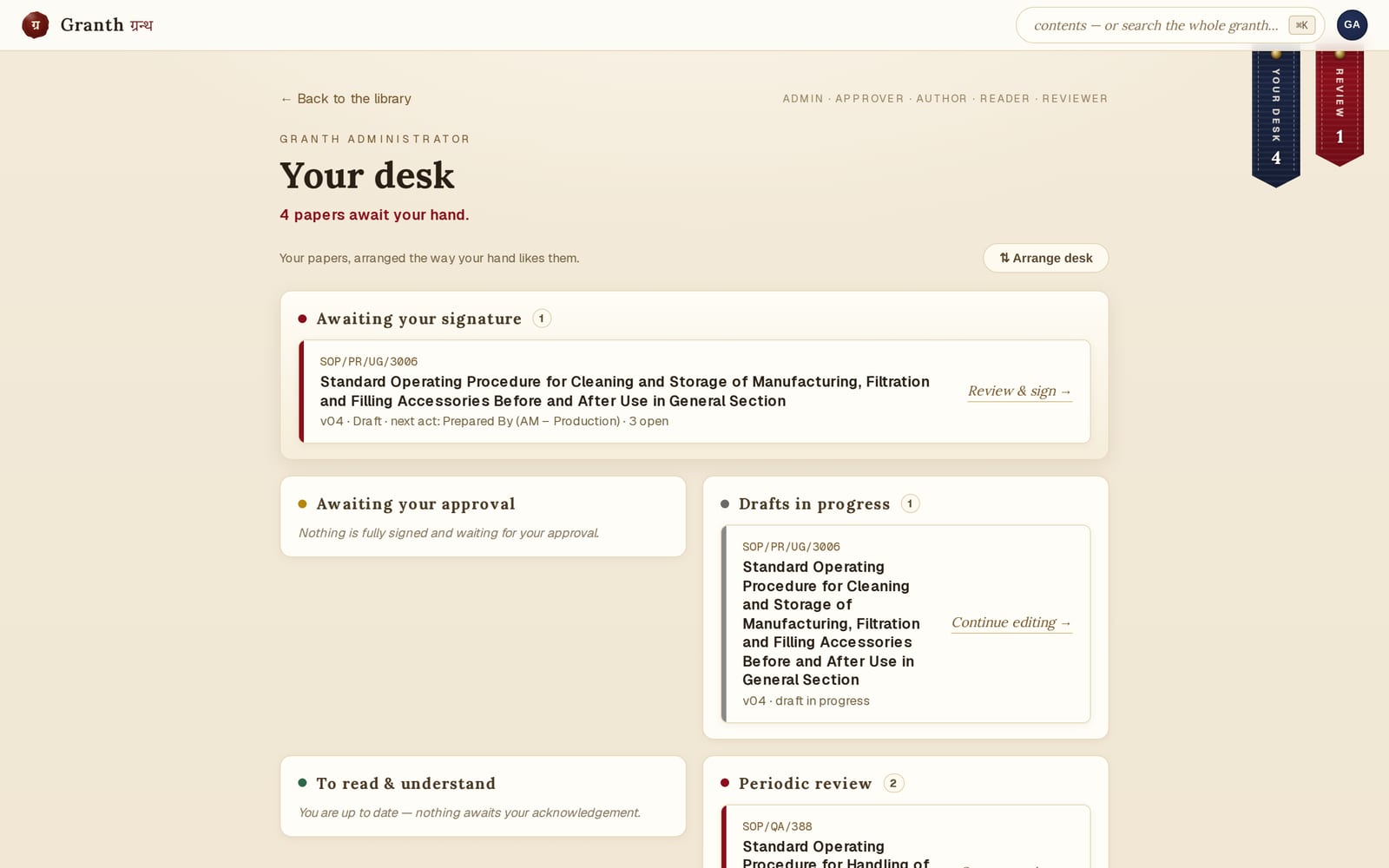
- Open the task from your desk — it takes you to the volume to read.
- Read it, then affirmread & understood — a deliberate, two-step act recorded with your name and the moment.
- Some documents are gated: they only become effective once enough readers have acknowledged.
11 Controlled distribution
Copy requests & the paper floor
Physical copies live a controlled life too. Copy requests(⌘K → “Copy requests”) is the counter: any department asks for a printed copy of a document; QA reviews, approves and issues it through the copy register. You don’t fill in a form — you find the document and ask. Every issued page carries a QR that anyone can scan, even without an account, to check the copy is genuine and still in force.
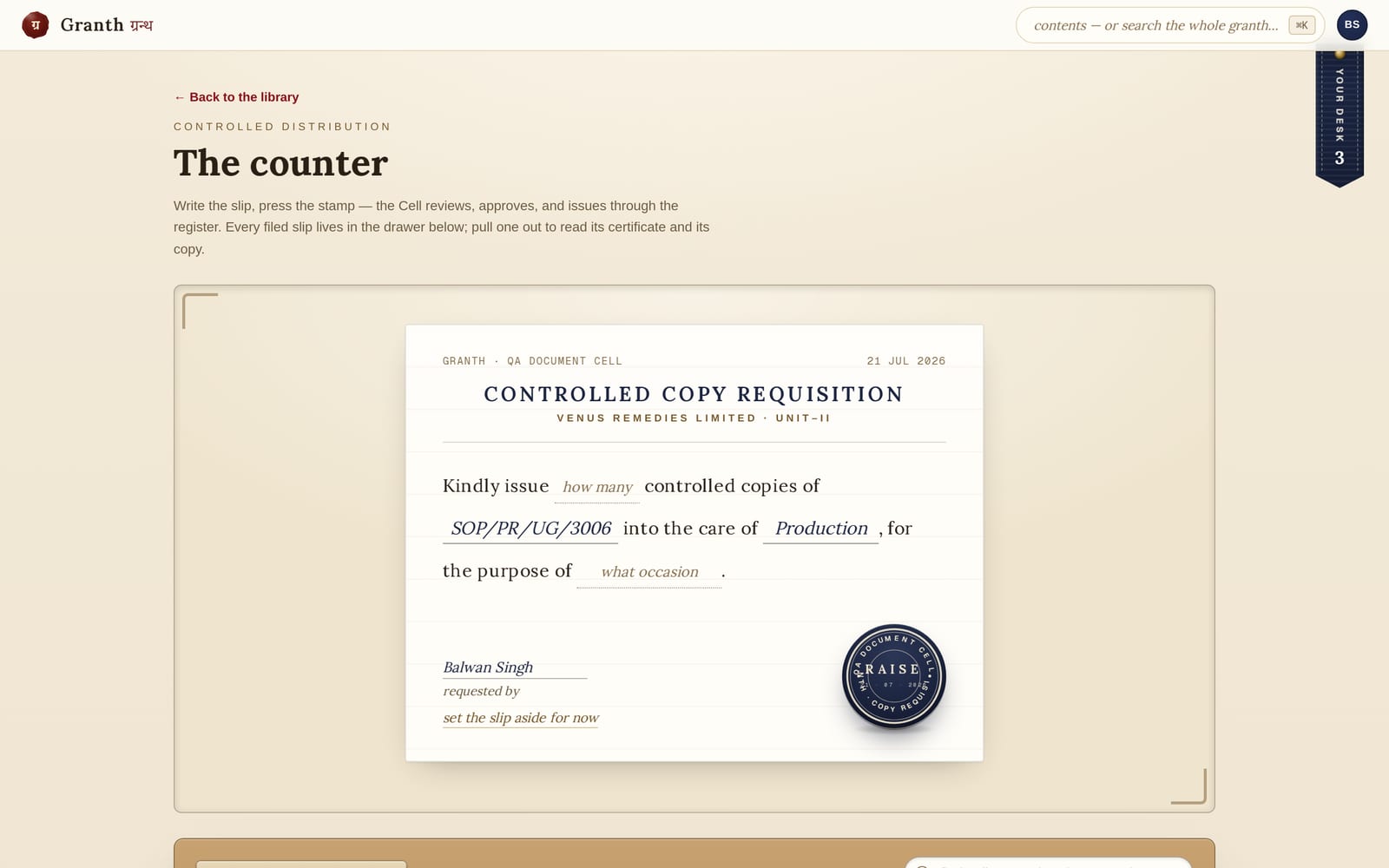
- Raise a request: search for the document by number or title — only documents in force appear — and pick it. The slip fills itself; your own department is already chosen. Set how many copies and (optionally) where they’ll live, preview the document if you like, then Raise the request. It goes straight to QA — no separate submit step.
- QA runs the queue: every slip says in plain language what is happening and offers the one next move — take for review, approve, then Issue (a preview spells out exactly what issuing will do). Granth renders and registers each copy with its own number and QR against the version currently in force.
- See where every copy went: once issued, the request lists its copies with their live state — issued, in circulation, retrieved — each linking to its verification page. “Where are the copies of this request?” is answered on the slip itself.
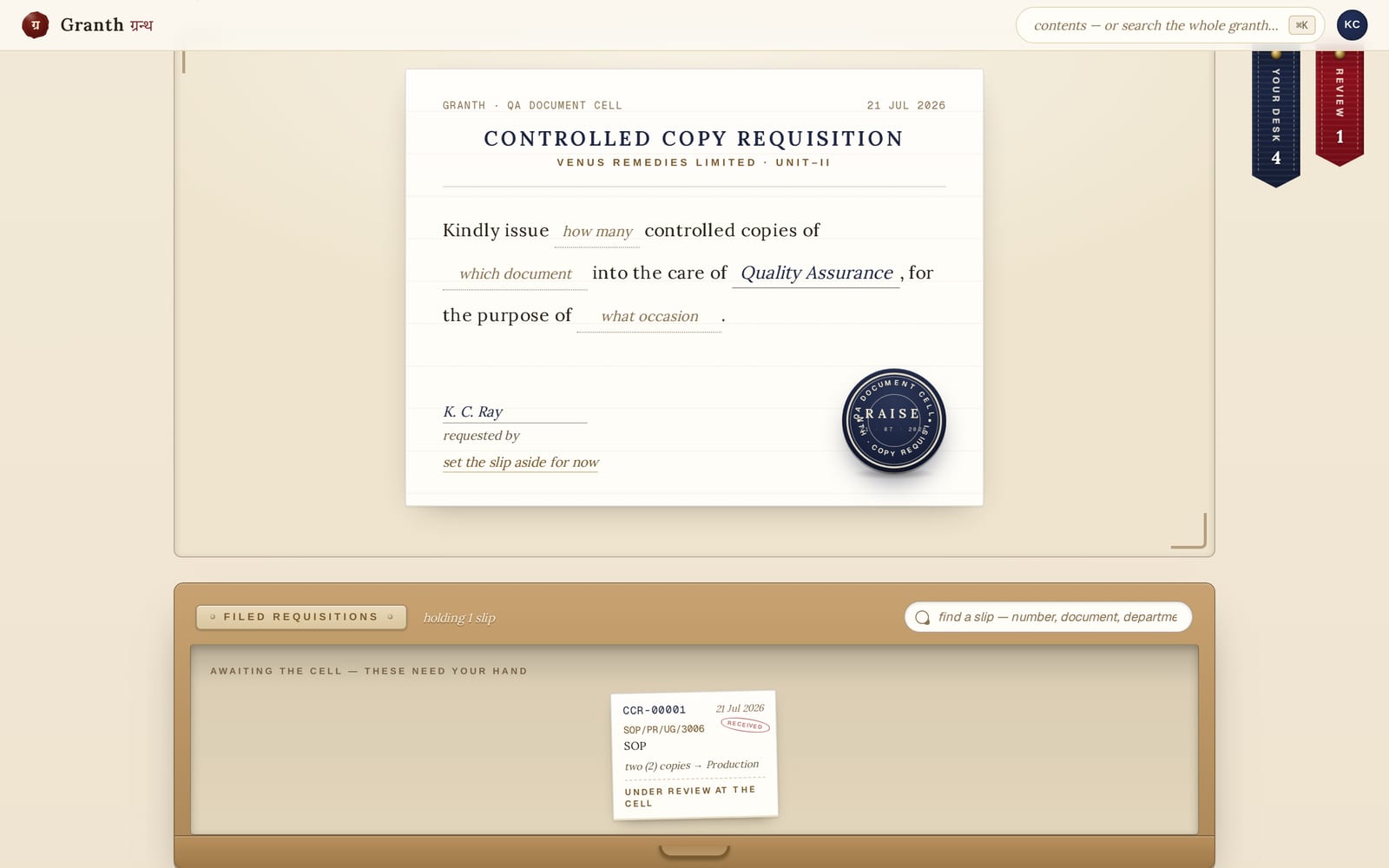
- The copy registertracks every physical copy’s lifecycle — issued, in circulation, awaiting retrieval, retrieved, destroyed — and the reconciliation viewanswers “are all our copies accounted for?” per document and department, exportable for audit.
- The document registry (linked from the register) is the card catalog: search by number or title and it answers what the document is, which version is in force, and where its copies stand.
- Auditor disclosures(linked from the register, or ⌘K → “Auditor disclosures”) is where QA hands documents to an external auditor: pick the effective documents, name the health authority, auditor and audit reference, and issue them as one batch of AUDITOR COPYPDFs — flattened image-only pages, each carrying the restrictive legend, attribution and its own QR. The disclosure register underneath answers “what did we hand this authority and when”, per audit and per authority, exportable as CSV. This is separate from copy requests: requests are the internal floor-copy path; disclosures are outward, attributed, purpose-bound.
12 Read-only, revocable
Sharing & printing
On any issued volume, the action bar carries everything you can do with it.
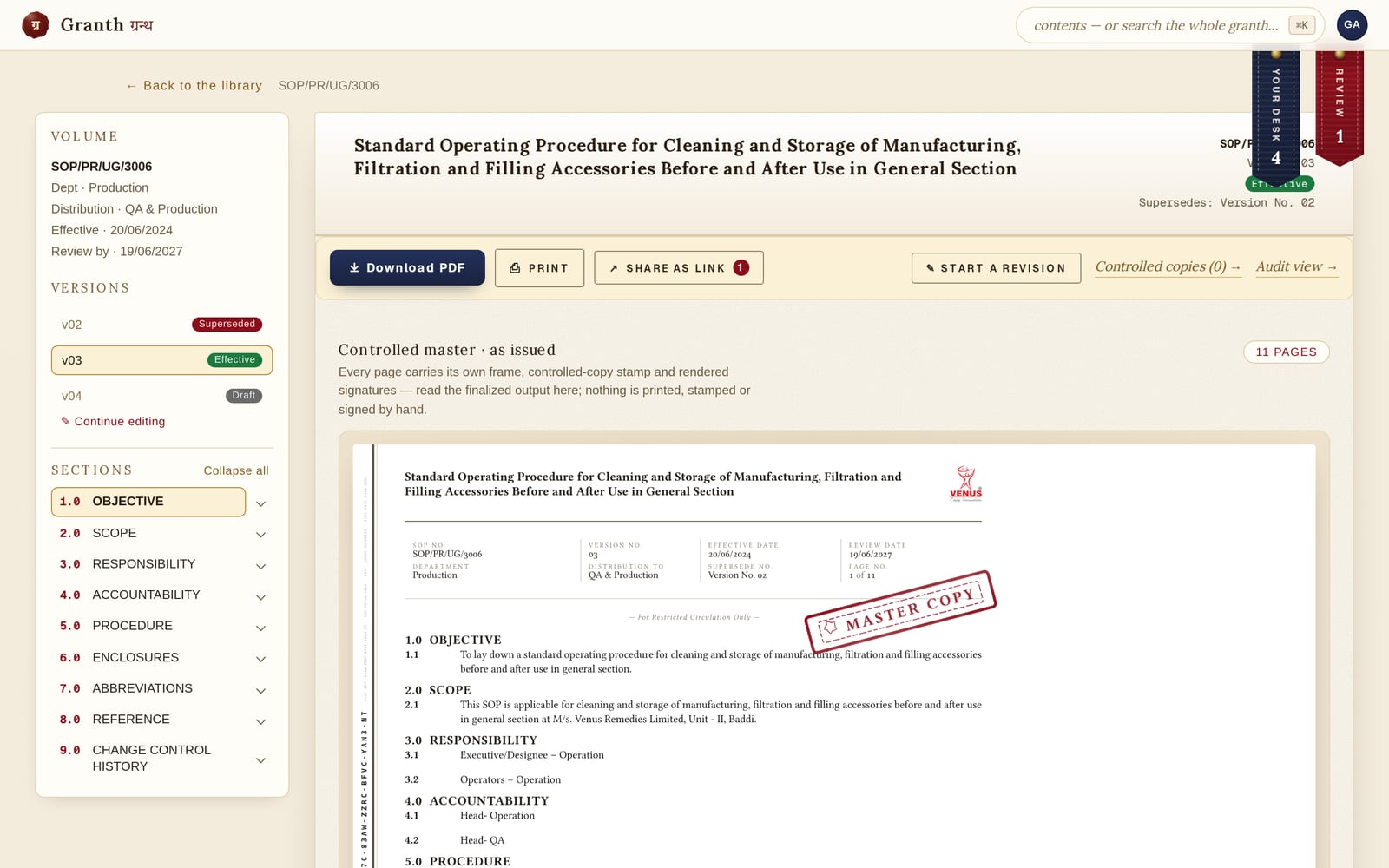
- Download PDF or Print (QA only) gives the controlled master. Issued copies are unique — user departments do not download or print them; QA prints the hard copy and provides it. A draft or superseded version may still print with its honest stamp for authors. The electronic master is the record — a printout is a controlled convenience.
- Share as link (Approvers) mints an internal link for a colleague or auditor. They must sign in with their own Granth account; the link opens exactly one version and can be revoked. Creating and revoking are audited.
13 Legacy migration
Importing legacy Word masters
The corpus of existing Word SOPs doesn’t need retyping. Import a legacy SOP (⌘K, authors only) brings a .docx master in as a reviewable draft.
- Uploadthe Word master. Granth parses it into the nine-section structure and lifts the frame fields — number, title, department, version — from the document’s own header table.
- Review the parse: a confidence score, the parsed outline, and every flagged item (numbering gaps, unmapped content) are shown for you to verify and correct. Nothing is trusted blindly.
- Commit — it lands as an ordinary Draft that opens in the editor and walks review → sign → issue like any hand-authored document. Nothing auto-publishes.
14 Inspector mode
The audit trail
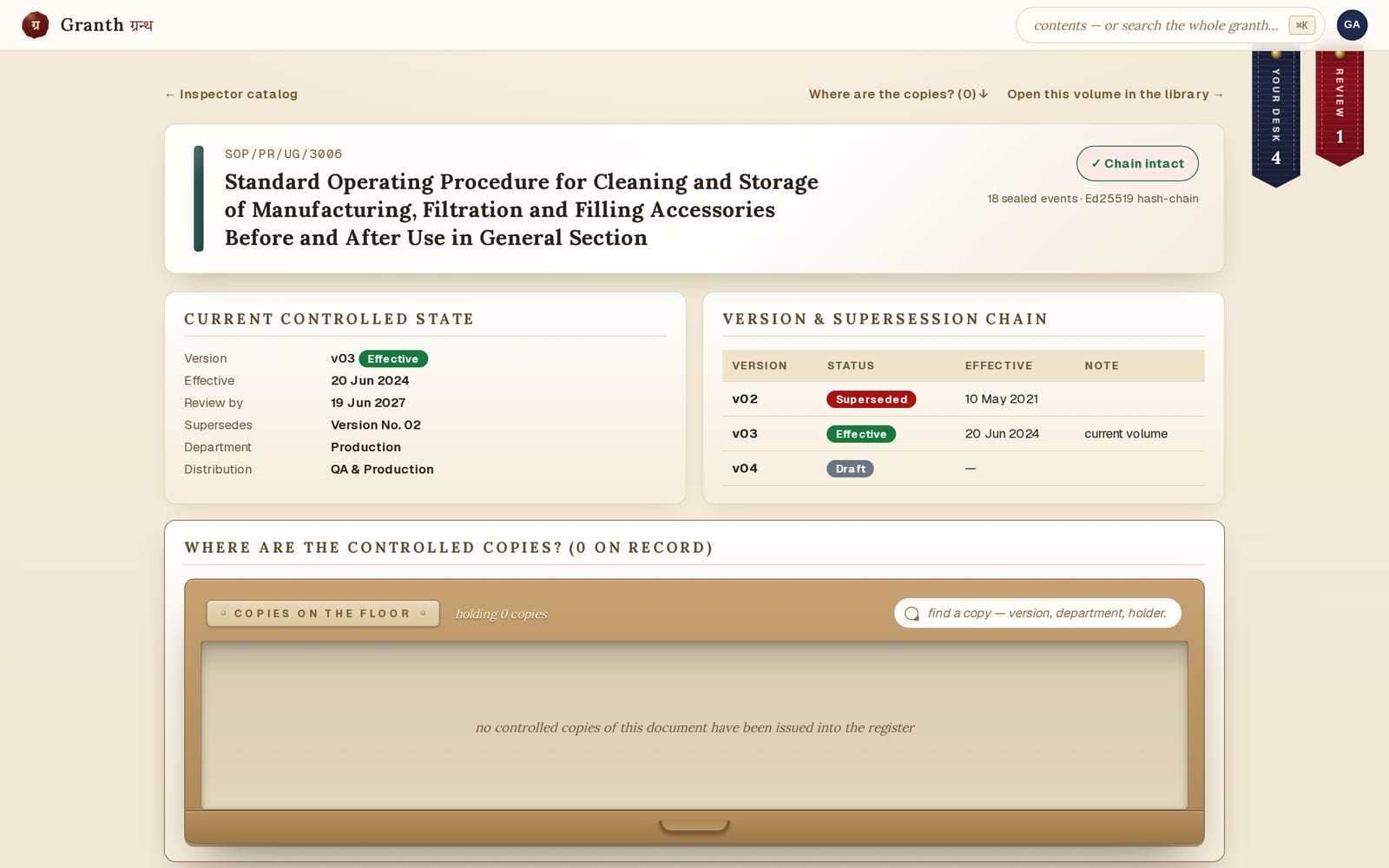
Reviewers, Approvers and Admins can walk a volume’s complete provenance — every version, every signature (who, what, when and why), distribution and acknowledgement status, where its controlled copies stand, and the append-only, hash-chained audit trail with its integrity verdict.
15 The register of people
Administering people
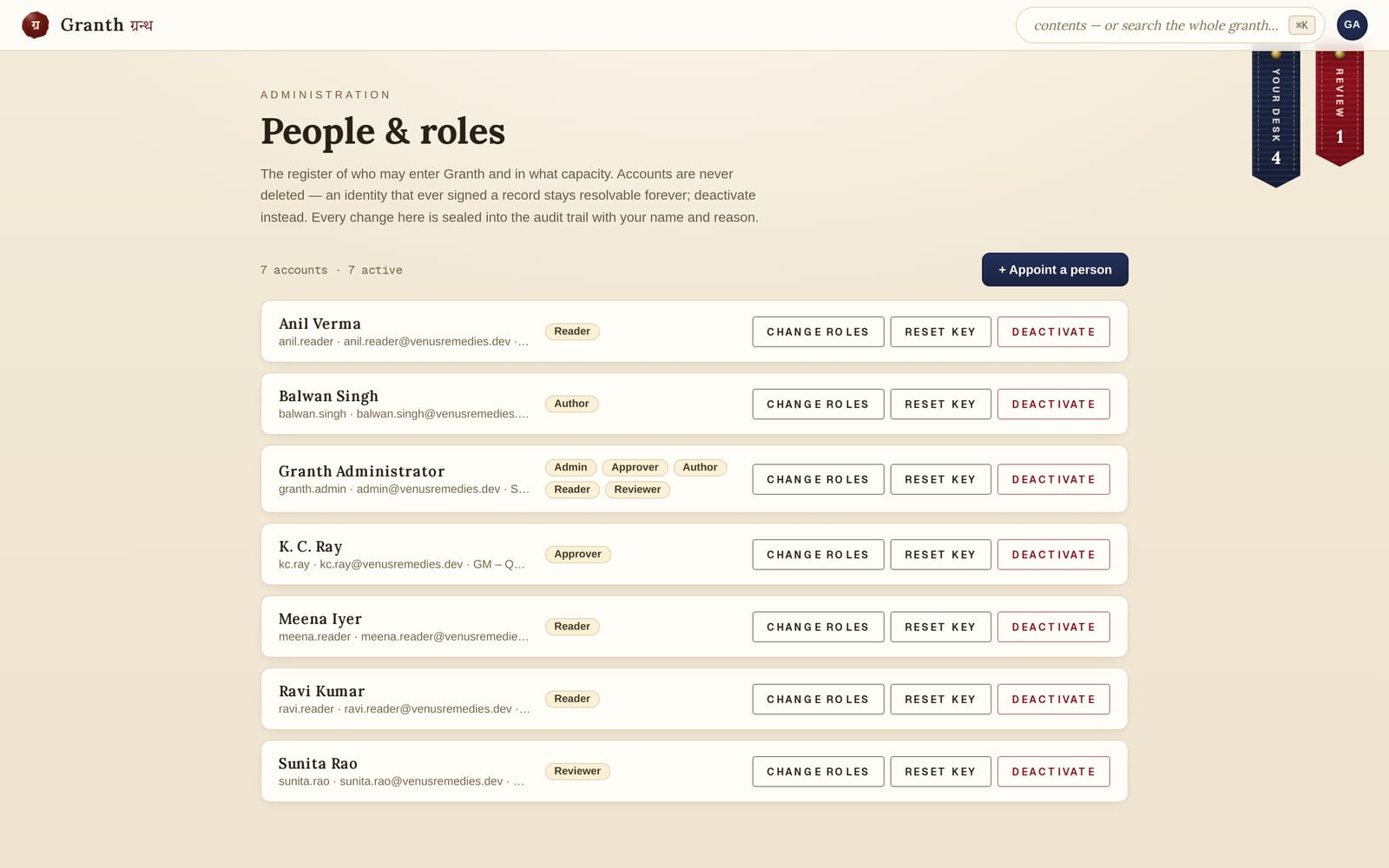
Admins keep the register of people(⌘K → “People & roles”): add a person, set what they may do, deactivate an account (never delete — an identity that signed a record stays resolvable forever). Every change asks for a reason and is sealed into the audit trail.
16 Small pleasures
Sound, bookmarks & the marker
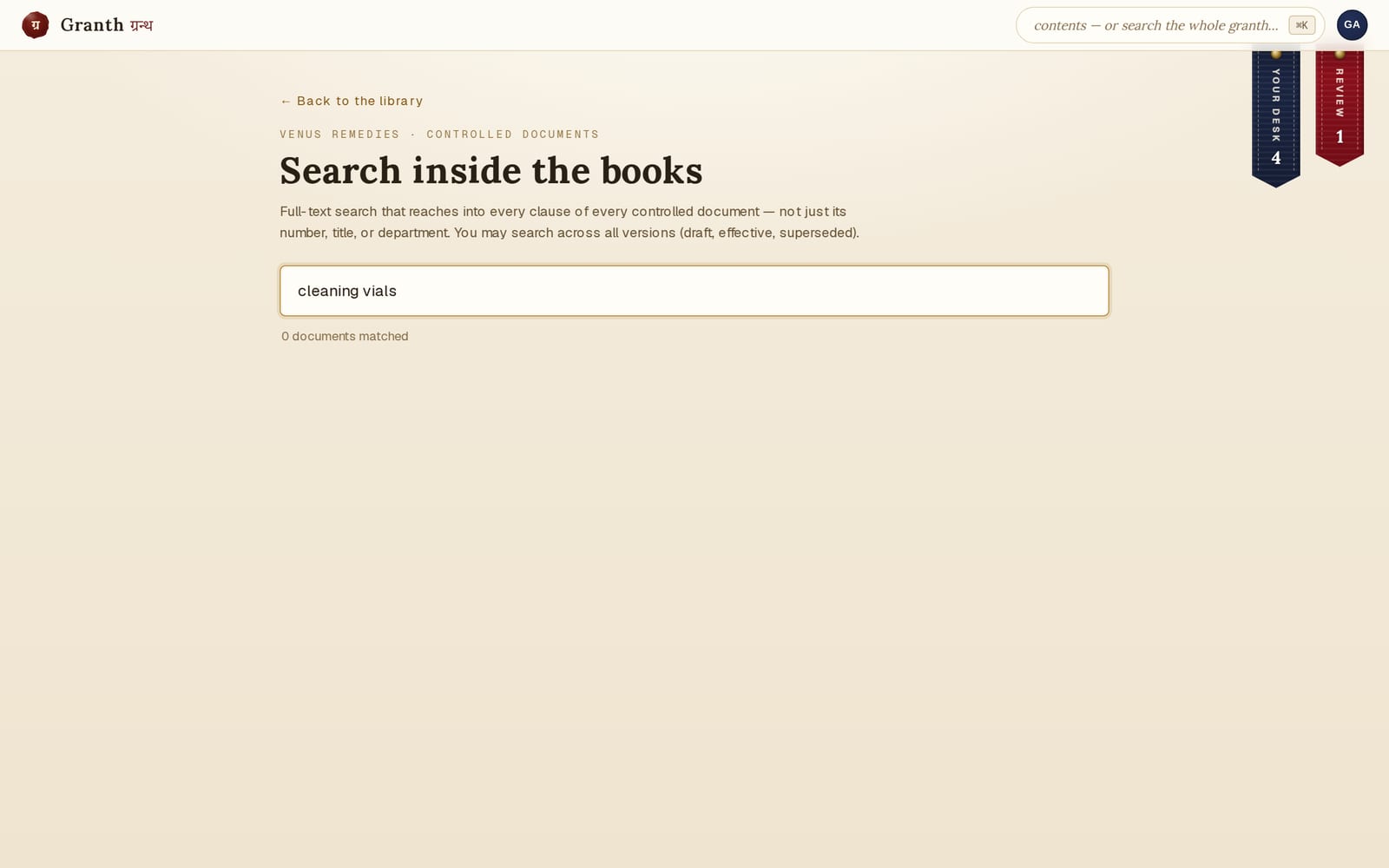
Searchreaches inside every clause of every document — a result deep-links to the exact passage and sweeps a highlighter stroke across it so your eye lands where the match is. Arriving from a department’s shelf, the search page lays that shelf’s volumes out for you before you type a word.
- Soundis off by default; arm it at the threshold or any time from your avatar menu (“let the room speak”). With it on, the library speaks its materials — the book opens as you enter, the palette slides like a card-catalog drawer, acts land as rubber stamps, refusals answer with a softly closed book, the nib scratches as you sign, the seal presses into wax — and the room itself holds a very quiet tone, one movement at the threshold and another among the shelves.
- The bookmarks hanging top-right are the attention layer: your desk, reviews due, copies awaiting retrieval. They only appear when a count is non-zero, they follow you to every page, and yes — they swing.
- On the Study’s shelves, the books are objects: drag the brass stopper and the spines lean and settle like real books.
- While reading a transcription, pick up the marker (bottom-right) and drag across the readable text for an organic highlighter stroke in three colours. It is a personal reading highlighter — session-only, for your eyes alone, never saved to the controlled record.